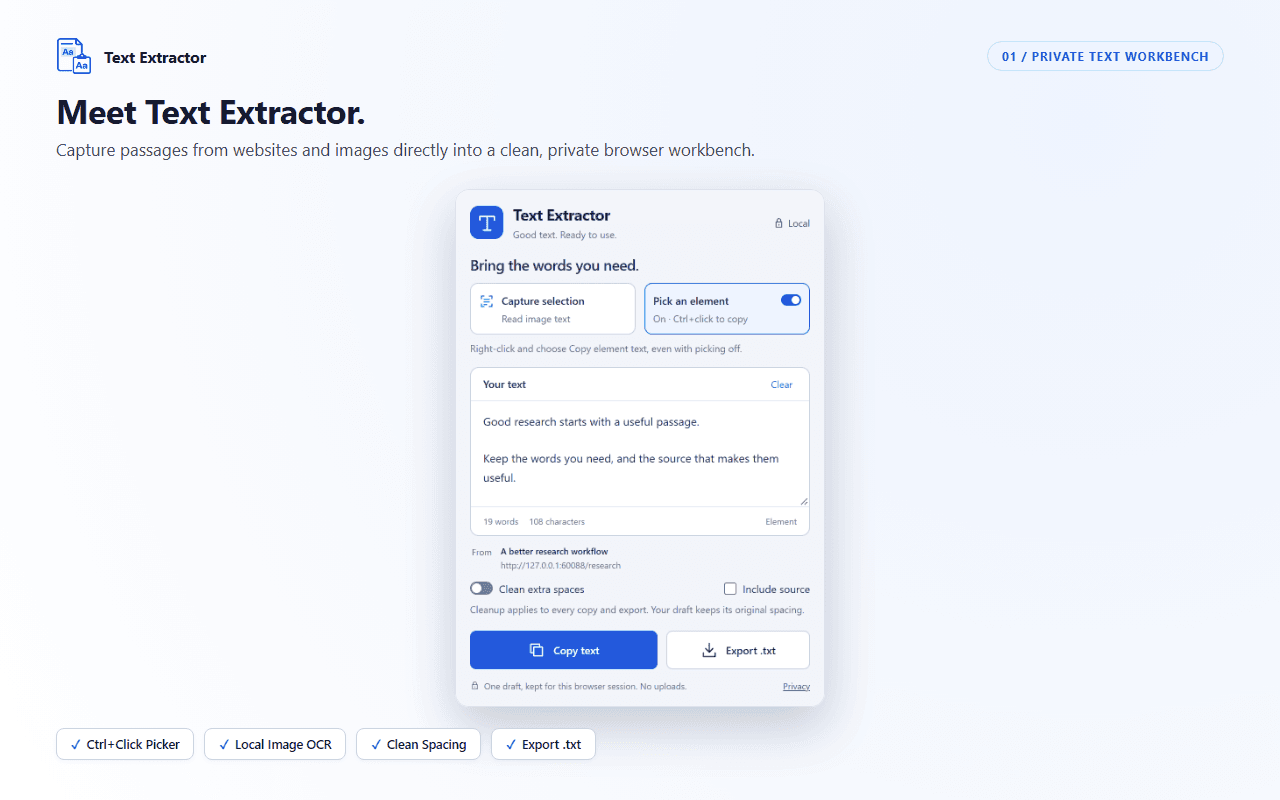
1 / 3 - Capture, edit, and export in one workbench
A little more about Text Extractor.
Copy a page element or read the words in an image, edit the result, and take it wherever you work. Text Extractor brings page capture, on-device OCR, text cleanup, and plain-text export into a private browser workbench.
Page-text capture
Enable the picker and Ctrl+click a paragraph, heading, or section. Or use Copy element text from the right-click menu, independently of the picker.
On-device image OCR
Capture the visible page, select an image region, and recognize its text locally. English is bundled; additional language packs download on demand. Choose up to three languages per image.
Clean, edit, and export
Review the draft, clean extra spaces while preserving paragraphs, and optionally include the source. Copy the result or export it as a .txt file.
From installed to in your flow.
1
Choose what to capture
On a supported website, use the element picker or the right-click menu for page text. Choose Capture selection for text inside an image.
2
Review your words
For images, select a region and the languages you need, then recognize it. Check the result and edit any OCR mistakes before using the text.
3
Take it with you
Choose cleanup and source options, then copy or export. Export important text before restarting the browser: the current draft is session-only.
Good questions.
Does OCR need an internet connection?+
English recognition works offline with the bundled language data. Other language packs need an initial download and can then be reused offline while cached. Browser storage limits or eviction can require another download.
Will my captured text survive a browser restart?+
No. Closing the popup keeps the current draft, but restarting the browser, disabling, updating, or reloading the extension clears it. Copy or export anything you want to keep.
Can it read every page or image?+
Capture works on supported HTTP(S) websites. Browser pages, store pages, the built-in PDF viewer, and local files are outside the documented scope. OCR uses the visible viewport, and blurry text, handwriting, or complex layouts can produce mistakes.